
Support
Settings, apps and our support form
Check the settings and frequently asked questions below first: most questions are answered there. Still stuck? Use the support form: it gives our engineers all the information they need straight away.
- Default SIP settings
- Free apps and softphones
- Support form for direct help

Works with
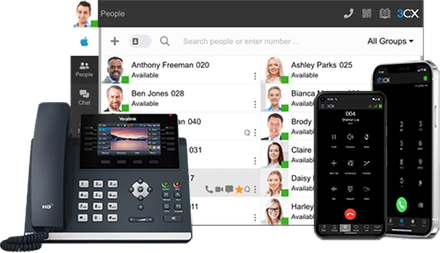
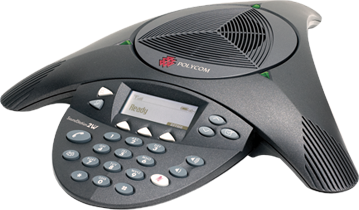
XeloQ works with any standard SIP device. A few examples of phones, apps and exchanges our customers use:
Free apps and softphones
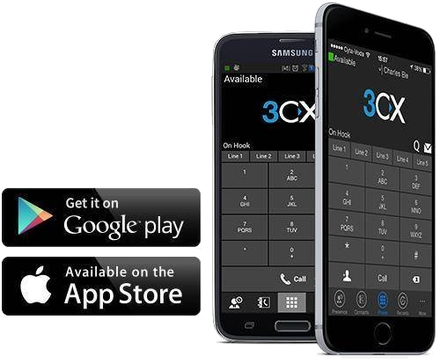
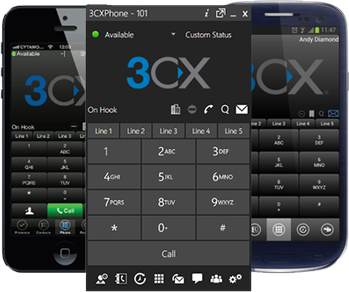
Use your account number (7xxxxx), password and server sip.goandcall.com (port 5060 or 6060). With the pre-configured Zoiper you only enter your account number and password.

Poor call quality?
Most problems are caused by the internet connection or the router. Check your speed and latency at speedtest.net, and:
- Enable QoS (Quality of Service) on your router for VoIP
- Turn off SIP ALG on your router
- Check whether large up- or downloads are running
- Try port 6060 instead of 5060
Your account and payments
In your account on my.goandcall.com you'll find your balance, call overview (CDRs) and invoices, and you can top up your credit.
Remote support
Can't solve a problem with your network or equipment yourself? We can help remotely for € 50 per hour; most VoIP and network problems are solved within the hour. Ask for it in the support form.
Frequently asked questions
My account or extension doesn't register. What now?
Check your account number, password and server (sip.goandcall.com). Have you activated your account by logging in once on my.goandcall.com? Try port 6060 and turn off SIP ALG on your router.
I can't make any calls.
Check that there is credit in your account and always dial in international format, e.g. 0044… or 0031…. First test with 900: if you hear yourself, your settings are correct.
The connection is made, but there's no sound.
This is almost always caused by the router (NAT/SIP ALG). Turn off SIP ALG, enable STUN in your phone or app, or try port 6060.
I paid, but I don't see the credit in my account.
Credit card and PayPal payments can take up to 48 hours because of a manual fraud check. Bank transfers are processed as soon as the money has arrived.
Where do I find my invoices and call overview?
Log in on my.goandcall.com: there you'll find your payments with invoices, your call history and your current balance.
How is a call charged?
Only answered calls are charged: after the first 12 seconds and then per 12 seconds. No call set-up fee, and calls between XeloQ users are free.
Can I install XeloQ as an app?
Yes. The website also works as an app on your smartphone, tablet or PC, without an app store, and opens straight from your home screen or desktop.
- Computer: click the App button at the top right of the menu bar, next to EN/NL
- Smartphone (Android): open the menu (top right) and tap Install app
- iPhone / iPad: open the menu (top right) and tap Install app, or tap the Share button in Safari and choose Add to Home Screen
Questions or need advice?
Our team is happy to help you choose the right solution.